



Connect a WeCom Smart Bot to Leina
This guide covers an API-mode smart bot using a long connection, configured with Bot ID and Secret. Personal WeCom account sign-in is a separate option. Before setup, compare the two connection methods.
Before you start
- Access to WeCom’s smart-bot creation flow and the permissions required by your organization.
- Access to the intended team and bot in Leina Console.
- An active Leina subscription or trial.
- Business-account authorization for any CRM, ERP, or document task you plan to run.
If creation or a required capability is unavailable, ask the person who administers WeCom for your organization. The steps below preserve the Chinese UI labels.
Create the smart bot in WeCom
- Open 工作台 (Workbench), then 智能机器人 (Smart Bot).
- Select 创建机器人 (Create Bot), then 手动创建 (Manual Creation).
- Under 更多设置 (More Settings), select API 模式创建 (API Mode Creation).
- Choose 使用长连接 (Use a Long Connection).
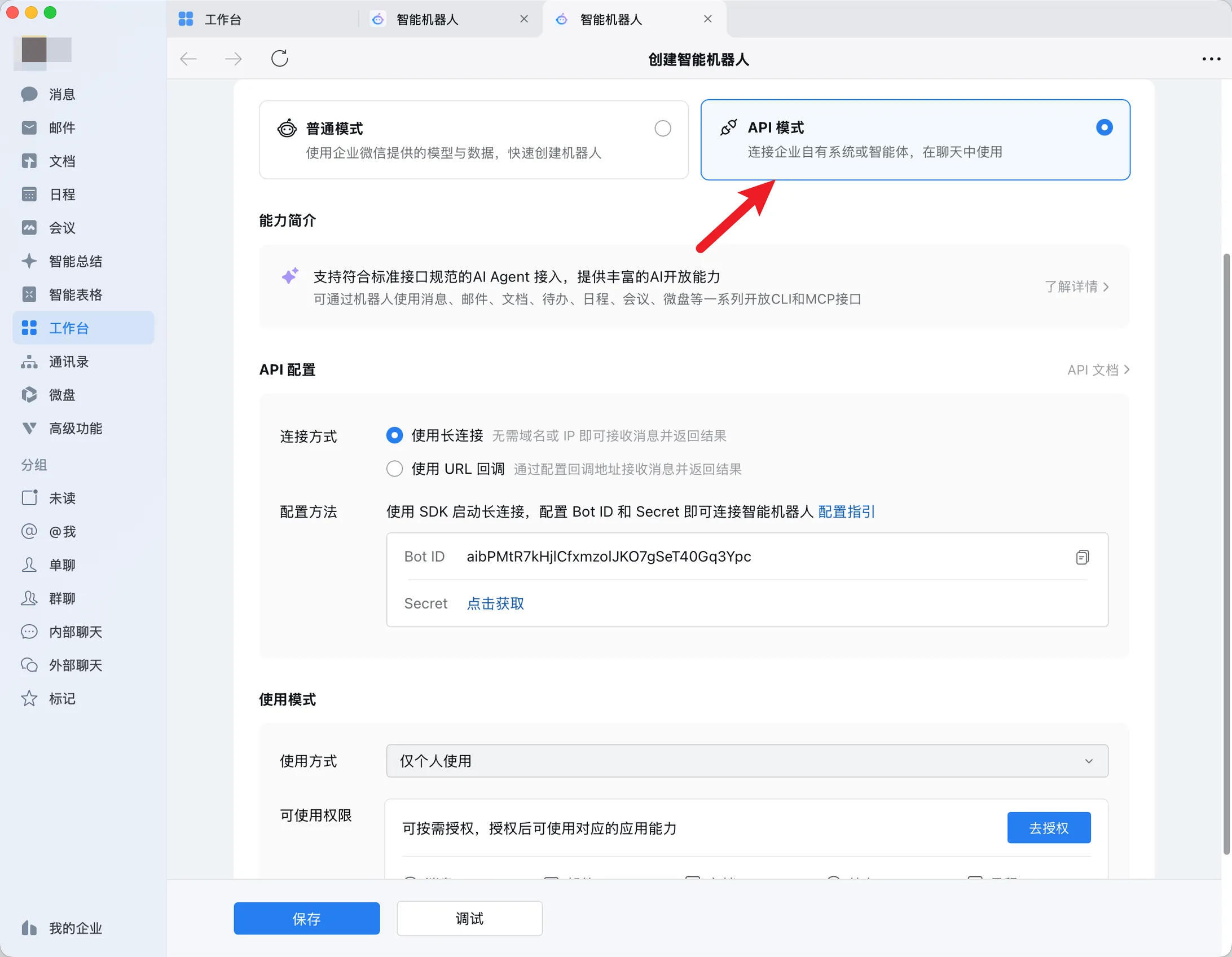
- Choose 仅个人使用 (Personal Use) or 多人使用 (Multi-user Use), then authorize the WeCom capabilities your task needs.
- Copy Bot ID, obtain Secret, and save the bot.
Personal or multi-user use controls the scope of this API bot. It does not sign in to a personal WeCom account or activate the separate personal-account option.
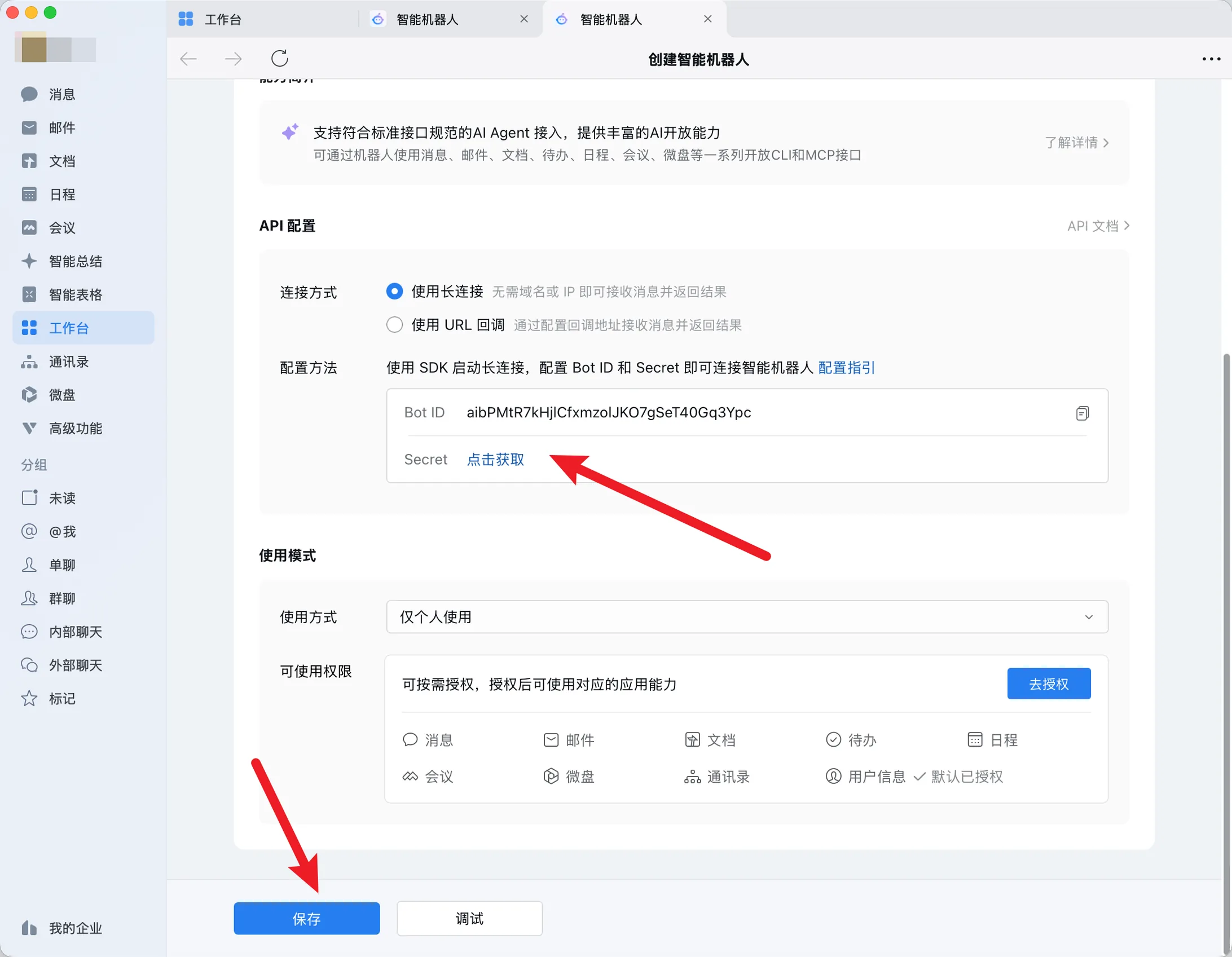
Use credentials from the bot you created; do not copy the Bot ID in the image.
Connect it to Leina
- Open Bots in Leina Console and select the intended bot.
- Open 企业微信机器人 (WeCom Bot).
- Enter the Bot ID and Secret from WeCom.
- Select 连接企业微信 (Connect WeCom). If an error appears, check the credentials and connection mode. Submitting the form alone does not establish a successful connection.
The connection form states that Secret is stored encrypted and its full value is not shown after connection. Enter it only in the connection form; do not paste it into task messages, shared documents, or support screenshots.
Confirm the bot receives messages
Send the configured bot a WeCom message that needs no external data, such as “Hello, introduce yourself in one sentence.” Once it replies, test a business task.
If it does not reply, check the bot’s active status in Leina, that the connection uses the intended Bot ID, and its WeCom usage scope. See “If setup or a task fails” below.
Authorize business data and verify one task
Connecting the bot establishes the chat entry point. To work with business records, use Connections to authorize the relevant App and check its supported actions.
Start with non-sensitive records whose expected result is known. Verify the task using the intended member and conversation, not only an administrator account. For example:
Read the authorized project notes for the specified week. Return the completed work, open questions, and source links. Do not change the source records.
Check the returned sources and the conversation’s participants before adding real workloads.
Personal-account sign-in and external groups
Leina Console lists 个人账号接入 (Personal Account Access) separately from the smart-bot connections. Its personal WeCom option is described as supporting private/group chats, WeChat contacts, and external WeCom groups.
Personal-account activation has a separate charge; see pricing. Access it through Personal Account Access in Leina Console; the Bot ID/Secret steps above apply only to the API-mode bot. Personal-account external-group support does not establish the same support for the API-mode bot.
If setup or a task fails
| What you see | What to check |
|---|---|
| Smart-bot creation or a required capability is unavailable | Your organization’s WeCom access and capability policy. |
| Leina cannot connect | You selected API mode and a long connection, saved the intended bot, and entered its matching Bot ID and Secret. |
| The bot is connected but paused | Its subscription or renewal status in Leina Console. |
| Chat works but business records are missing | The separate App connection, source account permissions, supported action, and member/group access. |
| You need an external customer group | Evaluate the personal-account option separately; do not assume the API-mode route has the same capabilities. |
For unresolved issues, send support the connection type, error text, and time of the attempt. Omit credentials and unrelated business data.
Read permissions and data access before sharing a connection or sending results to a group. See billing for the difference between subscriptions and usage charges.
Steps were checked against Leina Console’s existing five-step credential guide and connection form on October 7, 2026.